Auto Captions for Videos: Best Tools and How to Add Them in 2026

Vugola Team
Founder, Vugola AI · @VadimStrizheus
Last updated: 2026-09-30
The fastest way to add auto captions for videos in 2026 is an AI tool that transcribes your audio and burns styled captions into the video. My pick is Vugola: it clips long videos and captions every clip in the language spoken, across 99 languages, with no watermark, from $19.99 a month. Check names and jargon before you post.
Key takeaways
- A lot of people watch short-form with the sound off. Without captions, your first seconds say nothing to them.
- Burned-in animated captions are the standard on TikTok, Reels, and Shorts. Closed caption files (.srt, .vtt) still make sense for YouTube long-form.
- Audio quality decides caption quality more than the tool does. Clean audio in, clean captions out.
- No AI captioner gets names and jargon right every time, so scan before you post.
Automatic captions, generated by AI from your video's audio, are good enough now that most fixes are a name here and a brand term there. This guide covers the tools I'd look at in 2026, what affects accuracy, and how to style captions that actually get read.
Why auto captions for videos matter beyond accessibility
Auto captions for videos started as an accessibility feature, and they still are one. The World Health Organization estimates that about 430 million people live with disabling hearing loss. On social platforms, though, captions have also become a performance feature, because a big share of viewers scroll on mute and decide in the first second or two whether to stay.
Silent autoplay. Feeds autoplay video, and plenty of people watch in public, in bed, or in a meeting with the sound off. Without captions, your video says nothing for the first few seconds, which is exactly when viewers decide whether to keep watching.
Watch time. People who can follow along through captions stay longer. Watch time is what TikTok and YouTube Shorts reward most, so better retention means wider distribution.
Search. Captions give platforms text to work with. YouTube can read caption files, and spoken keywords in captions help people find videos about topics you never typed in the title.
Non-native speakers. Captions help people follow along in a language they read better than they hear. One thing to know: most caption tools, Vugola included, caption in the language you speak. Translating captions into another language is a separate feature that only some tools offer.
Types of captions
Closed captions (CC): A separate file (.srt, .vtt, .ass) the platform renders. Viewers can turn them on or off. Standard for YouTube long-form and educational content.
Open captions (burned-in): Part of the video pixels. They can't be turned off. Used for short-form social content where you control the style.
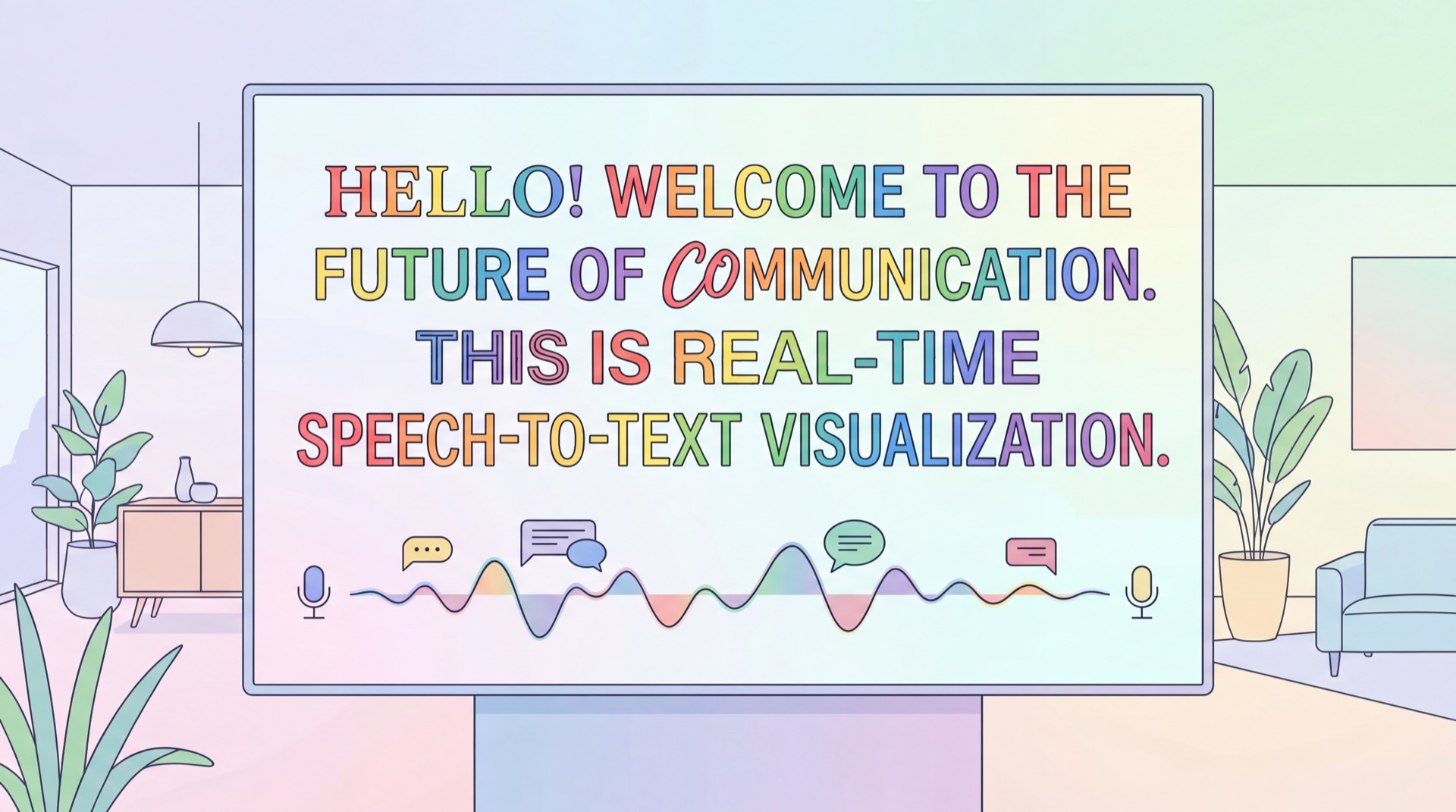
Animated captions: Burned-in captions where each word highlights as it's spoken. The standard look on TikTok, Reels, and Shorts, because the highlight pulls the viewer's eye along.
Most AI clipping and repurposing tools now burn animated captions into short clips. For long-form uploads, closed caption files are still the norm.
Best tools for automatic video captions in 2026
Prices were checked on each vendor's own site on September 30, 2026. Monthly means billed monthly.
Vugola: best for short clips cut from long videos
Vugola captions every clip it cuts. Upload a long video or paste a YouTube, Twitch, Kick, or Vimeo link, and Vugola clips it and burns word-level captions into each clip, with each word lighting up as it's spoken. For a single video that doesn't need clipping, the captions-only tool handles videos up to 20 minutes.
Languages: 99, captioned in the language spoken. Vugola doesn't translate or dub.
Style: Highlighted, Hormozi, Glow, Box, Classic, and more, with built-in fonts like Montserrat and Poppins. You set the size, color, and position, plus a custom color for the active word. You can't upload your own font.
Editing: Fix any caption in the clip editor. In the Studio editor, captions sit on the timeline next to your cuts, framing, and text, and the Cinematic style places them beside the speaker.
Where it works best: Short-form clips for TikTok, Reels, and Shorts.
Pricing: No free plan. Plans start at $19.99 a month. Captioning costs 1 AI credit per started minute of video, and you see the cost before it runs. No watermark on any plan.
Kapwing: for team editing in a browser
A collaborative browser editor. The catch for captions: every free export carries a watermark and tops out at 4 minutes.
Pricing: Free plan (10 credits, watermarked exports). Pro is $24/mo, or $16/mo billed annually.
CapCut: for quick edits on your phone
A capable free editor with auto captions and a big template library. The catch: it's built for editing clips by hand, and some premium templates and features need a paid plan.
Pricing: Free app. CapCut doesn't publish one Pro price; it varies by region and device, so check the Upgrade screen in the app.
Adobe Premiere Pro: for professional long-form
Speech to Text builds captions right on the editing timeline and exports .srt, .vtt, or burned-in captions. The catch: animated short-form captions take extra steps, and it's a full pro editor to learn.
Pricing: US$22.99/mo on the annual plan, billed monthly.
Descript: for editing podcasts from a transcript
The transcript is the editing interface, so fixing the text fixes the captions. The catch: its animated caption options are thinner than short-form tools, and clipping is a side feature.
Pricing: Free plan (60 media minutes a month, 720p, watermark). Hobbyist is $24/mo, or $16/mo billed annually. Creator is $35/mo, or $24/mo billed annually.
Caption accuracy: what to expect
Caption accuracy comes down to three things: audio quality, how clearly people speak, and what they're talking about. Tools matter less than people think. Studio audio with one clear speaker comes out close to clean. A phone recording in a loud room, a heavy accent, or two people talking over each other will need real fixes.
| Condition | What to expect | What to do |
|---|---|---|
| Clean mic, quiet room, one speaker | Close to clean | Quick scan for names |
| Phone recording or background noise | Noticeable mistakes | Clean up the audio first, then review |
| Jargon, acronyms, brand names | The most common errors | Fix every proper noun |
| Heavy accents or crosstalk | Frequent mistakes | Plan time to edit |
If your audio is rough, fix that first. Vugola's Enhance Audio cleans up noise and boosts the voice in one click, and it doesn't use credits.
Animated vs. static captions: which performs better?
For short-form content (TikTok, Reels, Shorts), animated captions where each word highlights as it's spoken hold attention better than static subtitles. The highlight tells the eye exactly where to look, which matters on a small screen competing with everything else around the viewer.
For long-form content (YouTube, courses, documentaries), static subtitles are the standard. Animated captions on a 30-minute video get tiring fast.
How to style captions for maximum performance
Font: Bold and high-contrast. Sans-serif fonts read fastest on a phone. Skip thin or decorative fonts.
Size: Big enough to read on a 6-inch screen without squinting. Bigger than you think.
Position: Lower third, centered. Don't cover the speaker's mouth or eyes. Leave room for each app's buttons and progress bar, and preview on the platform before you post.
Color contrast: White text with a dark stroke or shadow on light backgrounds. Yellow or cyan on dark ones.
Case: Sentence case or ALL CAPS. Caps feel more urgent and are common on TikTok. Pick one and stay consistent.
If you're captioning clips cut from long videos, my guide to how an AI clip generator picks moments covers the step before this one, and the free AI video caption generator roundup lists which tools have a free caption option. Vugola offers auto captions in 99 spoken languages on every plan from $19.99 a month, which makes it a good fit for creators who post short clips every week. Compare plans or create your account and caption your first video.